

Here's the thing - this choice carries more weight than it might feel. The wrong popup plugin can quietly drag down your page load times, frustrate visitors with clunky behavior, or create weird visual conflicts with your theme that you won't see until a reader points them out. Some plugins lock the features you actually need behind expensive plans. Others come loaded with options you'll never touch, which makes the interface a headache to work through every time you want to make an easy change.
Choosing well means thinking through a handful of helpful things before you hit the install button. Things like how the plugin works with performance, what targeting and trigger options it has, if it plays nicely with your email marketing tool, and how much it'll cost you as your preferences grow. None of that's especially tough, but it's easy to skip past when a plugin has a flashy demo and a five-star badge.
I'll walk through it - the questions worth asking, the tradeoffs worth weighing, and the features that legitimately matter versus the ones that just look great in a screenshot. No single plugin is crowned the winner here, because the right choice does depend on what you're building and who you're building it for.
Key Takeaways
- Define your popup goals first - email growth, cart recovery, and promotions require very different plugin features and capabilities.
- Trigger timing and audience targeting matter more than popup design; showing the wrong popup to the wrong visitor actively damages conversions.
- Free plugins often lock analytics and integrations behind paid add-ons, which can cost more than starting with a paid plan.
- Always test plugins on a staging site first - heavy scripts, theme conflicts, and mobile breakage are common performance pitfalls.
- Native email and CRM integrations are more reliable than Zapier bridges; third-party dependencies can disrupt lead flow unexpectedly.
What You Actually Need a Popup Plugin to Do
Before you look at a single plugin, it helps to get honest about what you want your popups for. The answer shapes everything - which features matter, how much you should spend, and what you can skip.
Most fall into one of a few camps. You might want to grow an email list, push visitors toward a buy, announce a sale, or cut back on the number of people who leave without taking any action. These are all basic goals but they call for very different tools.
A blogger who wants to collect email subscribers should have a plugin that connects to their email platform and lets them display a clean opt-in form at the right moment. That is a fairly simple job. A WooCommerce store owner has a longer list of needs - cart abandonment triggers, discount code delivery, exit detection, and upsell popups on the checkout page. Those two users are not shopping for the same plugin even if they type "popup plugin" into Google.
It is worth thinking about what success looks like for your site before you spend any money. Is it 50 new subscribers a month? A measurable drop in abandoned carts? More clicks on a seasonal promotion? Put a number or outcome to it if you can.

You should also think about how many different popup goals you have. Running one easy campaign is very different from handling five at once across a full store. Some plugins manage complexity well and others are built to stay light and focused. Neither is the wrong answer - it just depends on what you are trying for.
Get that part sorted first and the rest of the process can become quite a bit easier to work through. If you want to go deeper on your options, the Viewers.com blog covers a range of tools and strategies worth browsing.
How Popup Types Affect Which Plugin Fits Your Site
Different popup formats serve different purposes, and not every plugin works with them well. A lightbox is the classic modal that dims the background and puts a message front and center. A slide-in moves in from a corner without completely interrupting the page. Floating bars follow the top or bottom of the screen, and full-screen overlays take over the entire viewport.
Inline embeds are worth mentioning too. These sit inside your content instead of appearing over it, which makes them feel less like a popup and more like part of the page.
Some plugins are built for one or two formats well, and others try to cover every format possible. A plugin that specializes in floating bars may have polished templates and good display controls for that format, but give you very little to work with if you want a full-screen overlay.

This matters when looking at template counts. A plugin advertising 450+ templates seems like a strong choice, but if most of the templates are lightboxes and you need slide-ins, the number becomes less impressive - it's worth checking which formats those templates actually cover before you get excited about the quantity.
Here is a rough guide to which formats fit which goals.
| Popup Format | Common Use Case |
|---|---|
| Lightbox | Email list growth, lead capture, promotions |
| Slide-in | Content upgrades, soft opt-ins, secondary CTAs |
| Floating bar | Announcements, countdowns, sitewide promotions |
| Full-screen overlay | age verification, welcome mats, major campaigns |
| Inline embed | Mid-content opt-ins, contextual offers |
Knowing which format fits your goal helps you filter plugins by what they are actually built for instead of by feature lists alone. If you want to go beyond popups and turn anonymous visitors into enriched leads, that's worth exploring as a complementary approach.
Trigger and Targeting Options That Make or Break Performance
The popup type is only half the equation. What actually drives results is when a popup appears and who sees it.
Most plugins support a handful of standard triggers. Time delays show a popup after a visitor has spent a set number of seconds on a page. Scroll depth triggers fire once a visitor reaches a point down the page, which is a sign they're engaged. Exit intent detects when a cursor moves toward the browser bar and fires a popup at that moment. Each trigger serves a different purpose, and the right one will depend on your goal.
Targeting rules take this further by controlling which visitors see a popup at all. You can restrict a popup to a specific page, to first-time visitors only, or to users who came from a particular traffic source. Some plugins let you target by device type, location, or by what a user has already clicked - this segmentation keeps your popups relevant instead of generic.
A popup shown to the wrong person at the wrong time doesn't just fail to convert - it actively annoys users and pushes them away, and that's a real cost worth taking seriously.

Testing matters alongside targeting for this reason. OptiMonk, just to give you an example, uses a 90% confidence threshold in its A/B testing to decide a winner between popup variations. That built-in testing discipline helps you refine triggers and targeting rules based on actual data instead of guessing.
When you review a plugin, look at how granular the targeting controls actually are. Some plugins give you basic page-level rules and not much else. Others let you build layered audience conditions that get quite precise. The more control you have, the better you can match each popup to the right visitor at the right time. If you have questions about any of the options covered here, feel free to get in touch with our support team.
Comparing Free vs. Paid Popup Plugins on WordPress
Free plugins can get you started, but they draw a hard line at the features that help you grow. You'll get basic popup display and some easy controls, but conversion analytics, third-party integrations and multi-site support are usually locked behind a paid plan.
Popup Maker is an example of this split. The free core plugin is helpful for building popups, but tracking how those popups perform is going to need purchasing the Analytics add-on separately. Paid extensions also unlock support for up to 20 site activations, which matters if you manage multiple WordPress installs.
On the other end, some plugins don't have a free version at all. Thrive Leads is only available as part of Thrive Suite at $149 per quarter, so you're buying into a full toolkit instead of a single plugin; it's a fair trade if you already use other Thrive products, but it's a bit to spend just to get popups.
OptinMonster sits somewhere in the middle. There's no free tier, but the entry price is pretty low and the platform scales up as your needs grow. The 700+ template library only unlocks on higher plans, so your starting experience will feel more limited than the marketing implies.
| Plugin | Free Version | Paid Starting Price | Notable Limit |
|---|---|---|---|
| Popup Maker | Yes | Varies by extension | Analytics requires paid add-on |
| OptinMonster | No | Starts low, scales up | 700+ templates on higher tiers |
| Thrive Leads | No | $149/quarter (Suite) | Bundled only, not standalone |
What you need versus what you'll need in six months is worth thinking about. A free plugin might cover your current setup, but you could end up paying for extensions that cost more than a paid plan would have from the start.
Plugin Performance, Speed, and Theme Compatibility
Once you've settled on a budget, there's another box to check before choosing a plugin: how it behaves on your site. This part gets skipped a lot, and it's worth slowing down for.
Popup plugins load scripts on your pages, and some load them heavily. A heavy plugin can add significant weight to your page load time, which hurts user experience and search rankings. A popup that slows your site down does more harm than good, no matter how well it converts.
Theme and page builder conflicts are also worth thinking about. Plugins like Elementor and Divi have their own way of taking care of layout and scripts, and not every popup plugin plays nicely with them. Even a well-reviewed plugin can behave differently depending on your theme and hosting environment, so reviews alone aren't enough to go on.

Mobile responsiveness is another thing to check. A popup that looks fine on desktop can break the layout on a phone, and a large chunk of your visitors are likely on mobile. Test every display format you're looking to use on at least two or three screen sizes.
The best strategy is to test the plugin on a staging site before you put it live. A staging environment lets you catch layout problems, speed issues, and script conflicts without any danger to your actual visitors. Most managed WordPress hosts include staging tools, so this is easier than it used to be.
Don't assume a plugin is safe just because it has thousands of installs. Your theme, active plugins, and server setup all affect how a new plugin performs. Install it, test it thoroughly, and check your page speed scores before you go live.
Email and CRM Integrations That Save You Hours of Work
Most use popups to collect leads and those leads need to go somewhere helpful. If your popup plugin doesn't connect cleanly to your email platform or CRM, you're looking at manual exports, copy-paste work, or clunky workarounds that break at the worst times.
Plugins manage integrations in two ways. A native integration means the connection is built directly into the plugin. A Zapier-style bridge uses a third-party automation tool in the middle. Native integrations are usually more reliable because there are fewer moving parts to fail.
A Zapier workaround can work fine, but it can add a dependency you have to keep. If Zapier changes its pricing or has downtime, your lead flow stops; it's a real danger for any business that relies on list growth.
Before you pick a plugin, write down every tool in your current setup. Think about your email platform, your CRM, your webinar tool and your e-commerce platform if you have one. Then check the plugin's integration page directly - not just a screenshot, but the list of supported apps.
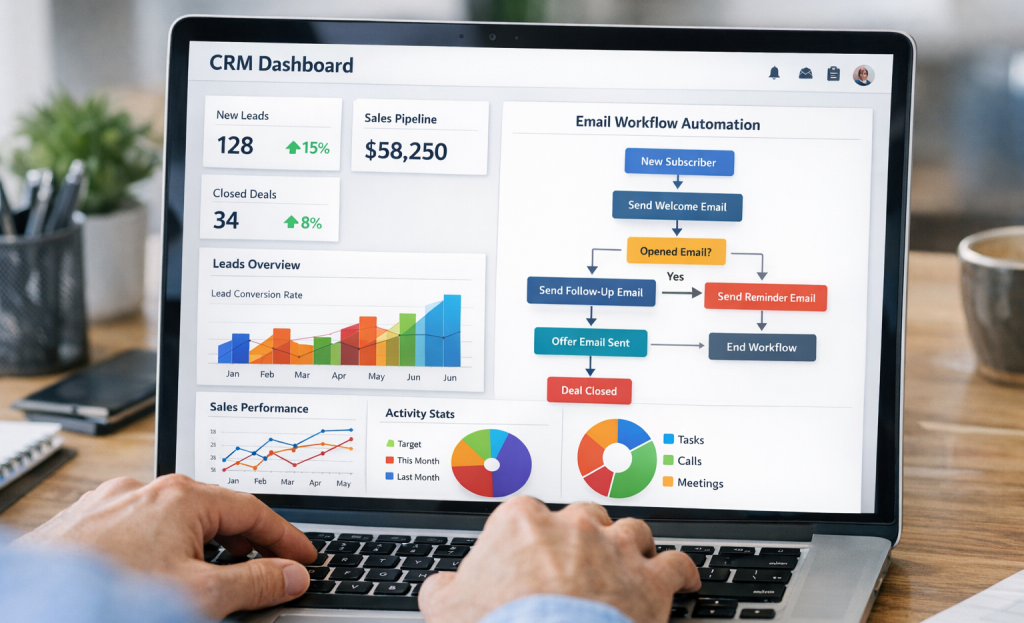
OptinMonster has built one of the largest native integration libraries in this space, which is part of why it's active on over 1.2 million websites. That breadth matters when your tech stack has more than one or two tools to connect.
| Integration Type | Reliability | Extra Cost | Setup Complexity |
|---|---|---|---|
| Native (built-in) | High | None | Low |
| Zapier / Make bridge | Medium | Possible | Medium to High |
| Webhook (manual setup) | Varies | None | High |
A plugin that doesn't have a direct connection to your email tool will create more work than it saves.
Red Flags to Watch for Before You Install Any Popup Plugin
Before you install a plugin, it pays to take five minutes to check a few things that are easy to miss. Some plugins look great in screenshots but fall apart once you're actually inside them.
Start with the update history. A plugin that hasn't been updated in over a year is a real concern - WordPress core updates frequently, and an unmaintained plugin can break your site or create security gaps. Check the changelog on the WordPress plugin repository before downloading anything.
Thin or missing documentation is another sign worth taking seriously. If you can't find a help post that explains how to do basic things, then you'll be stuck waiting on support tickets every time something goes wrong. Good plugins invest in their docs because they know users are going to need them.
GDPR compliance tools aren't optional if you have visitors from Europe. Look for built-in options to add consent checkboxes and connect to cookie consent settings. If those features aren't mentioned anywhere on the plugin's site, that's a gap you don't want to discover after the fact.

Watch out for pricing that looks basic but spikes sharply on renewal. Some plugins advertise a low first-year price and then charge significantly more to keep your license active. Read the renewal terms before paying anything.
Finally, a large template library is not a substitute for a builder. A plugin advertising 700 templates means very little if the editor is slow, unintuitive, or limited in what it lets you change. Test the builder itself - that's where you'll actually spend your time. A smaller template library with a smooth, flexible editor will serve you a lot better in the long run.
Pick the Plugin That Works for Your Site, Not Someone Else's
As you weigh your options, focus on what actually matters for your use case. A massive template library or a long feature list means little if the plugin bogs down your site or locks basic targeting behind a premium paywall. Prioritize the capabilities you'll use and don't let feature overload push you toward something more complex than you need.

The best next step is a simple one: pick a plugin that goes hand in hand with your goals, install it and run an actual test on your site before committing. Most give you a free tier or trial - use it. See how it performs, how intuitive it feels to build with and if your conversions move in the right direction.
That experience will tell you more than any comparison chart.
FAQs
What should I define before choosing a popup plugin?
Define your popup goal first - email growth, cart recovery, and promotions require very different features. A blogger collecting subscribers needs something simple, while a WooCommerce store owner needs cart abandonment triggers, exit detection, and upsell capabilities.
Are free popup plugins worth using on WordPress?
Free plugins can get you started, but analytics and integrations are often locked behind paid add-ons. These extras can cost more than a paid plan from the start, so factor in long-term costs before choosing a free option.
How do popup triggers affect conversion performance?
Trigger timing determines whether a popup helps or annoys visitors. Time delays, scroll depth, and exit intent each serve different goals. Showing the wrong popup to the wrong visitor at the wrong moment actively damages conversions.
Should I test a popup plugin before going live?
Always test on a staging site first. Heavy scripts, theme conflicts with builders like Elementor or Divi, and mobile layout breakage are common issues that won't appear until the plugin is installed and running.
Are native integrations better than Zapier bridges?
Native integrations are more reliable because fewer moving parts can fail. Zapier bridges introduce a third-party dependency - if Zapier experiences downtime or changes pricing, your lead flow can stop unexpectedly.